Layers
Layer Type
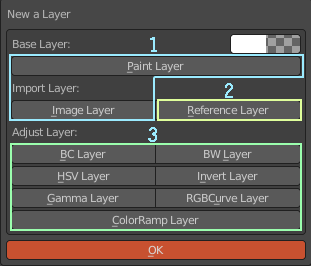
Fig. 44 圖層種類
1. Paint layers. There are two types, one is a solid-color painting layer, and the other is a painting layer created by an image (imported from outside or an image in Blender). The common point is that you can continue to process and draw on it. 2. Reference layer. The layer that can no longer be processed after the image is imported from the outside is mainly designed to import PSD multi-layer files. You can also use this layer to merge ACPainter painting layers into it. 3. Adjustment layers. Color adjustments can be made without affecting other drawing layers and reference layers.
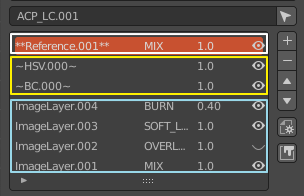
Fig. 45 Layer type representation
Different layer types have different expressions in the layer editor, which can be easily identified. Each layer can be added with a layer mask for further adjustments. Image layers refer to drawing layers and reference layers.
Image Layer Output
ACPainter can output images of painting layers and reference layers, and the process is quite simple.
Set the project folder path.
Select the image layer to be exported, and cancel the display of other layers not to be exported.
Set layer output information (including layer order, blending mode, opacity), sorting direction.
Click the Output Layer function button.
Open File Explorer to confirm.
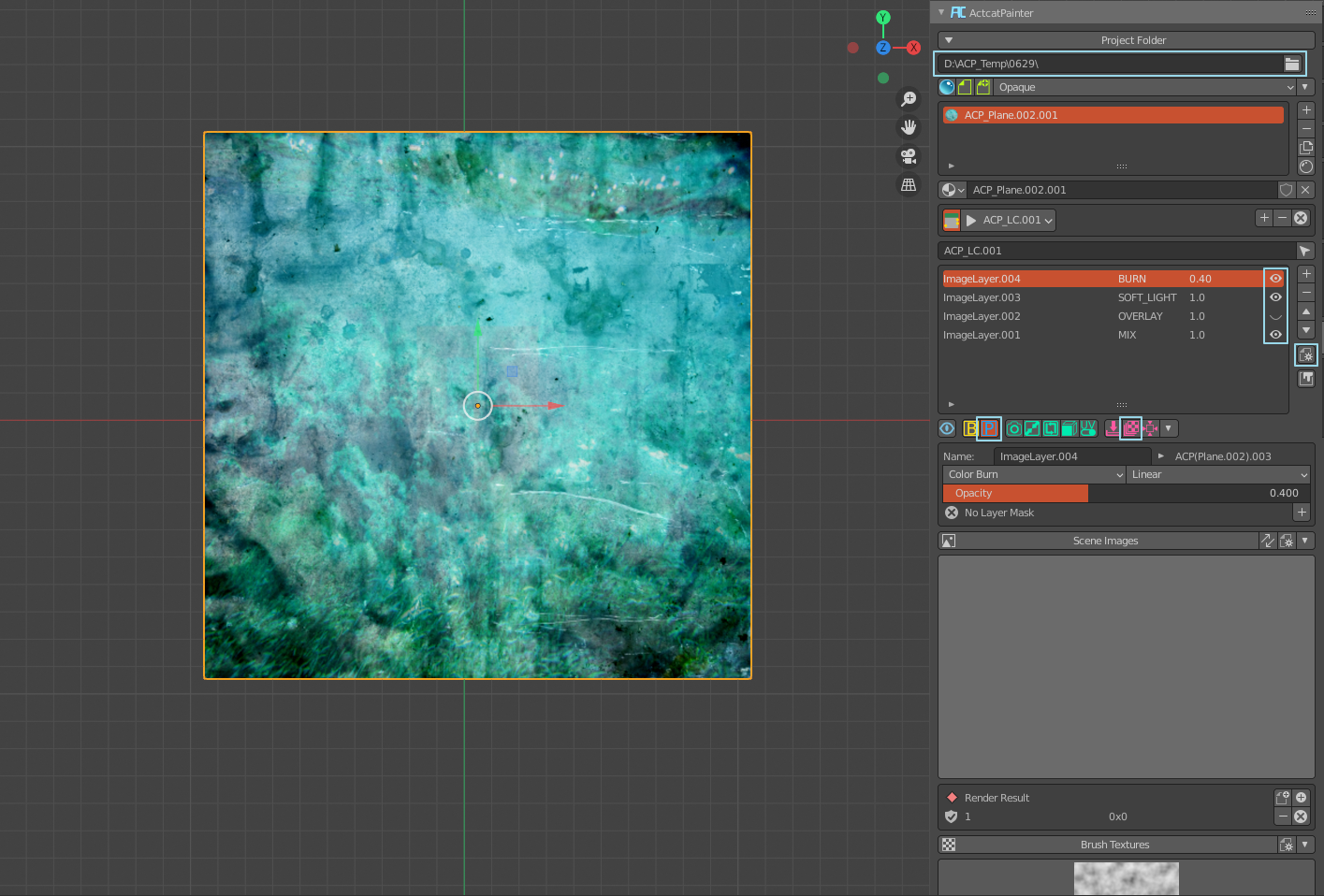
Fig. 46 Check before exporting layers

Fig. 47 Setting before output layer
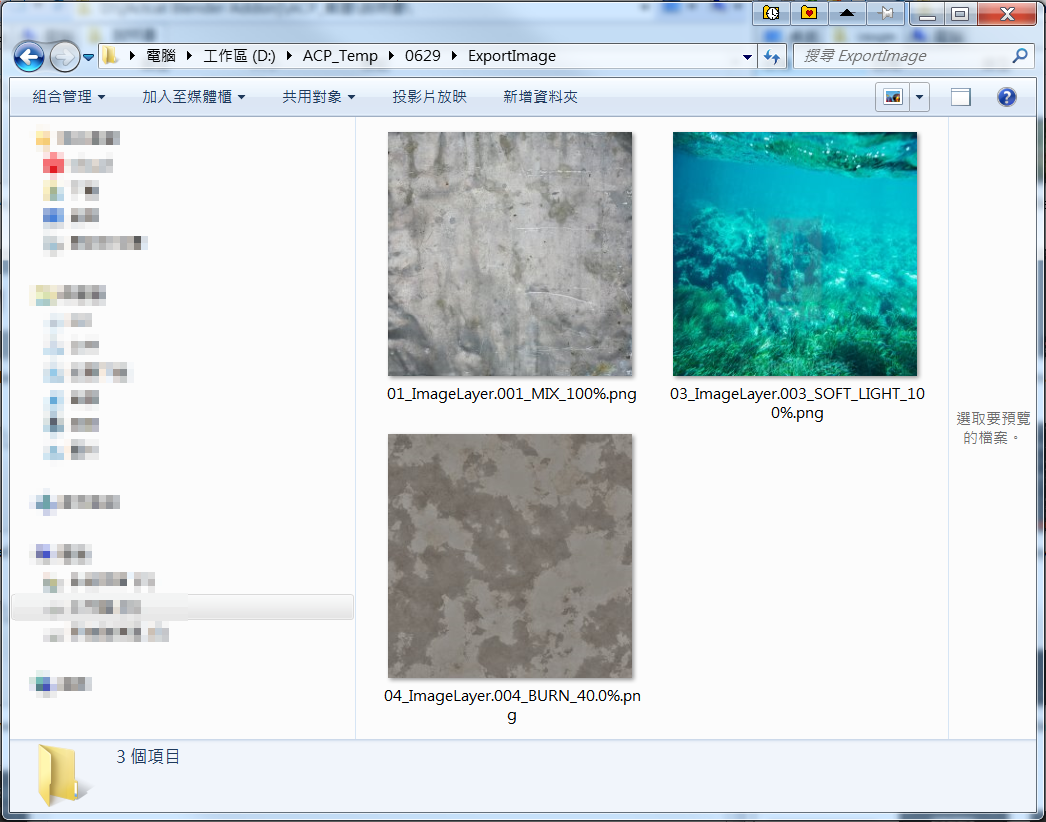
Fig. 48 Export layers to the project folder
Composite PSD File – Krita
Enable layer info, set layers to sort correctly, and output layers.
Start Krita and create a file that fits the image size of the output layer.
The layers of images imported and exported at one time will be arranged in order.
According to the imported layer image information, set the layer blending mode and opacity.
Save it as a PSD file, and then import it into ACPainter as a reference layer for easy correction at any time.
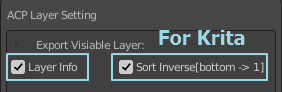
Fig. 49 Settings of export layers to Krita
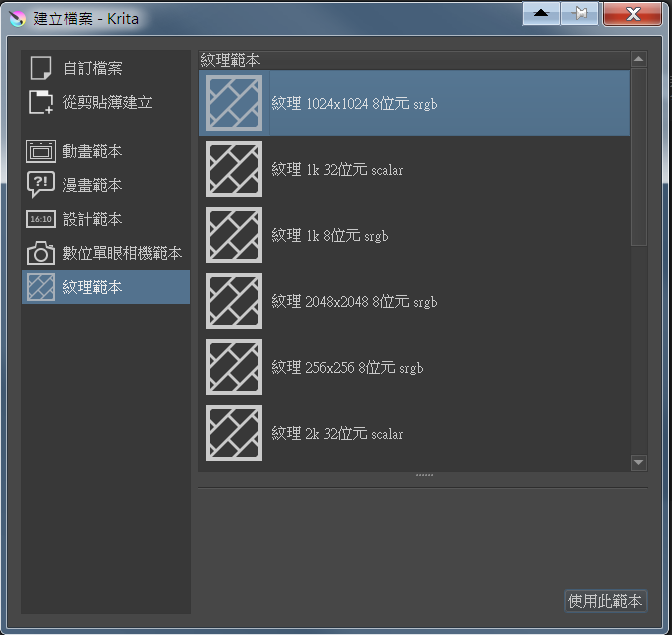
Fig. 50 Opens a new file in Krita
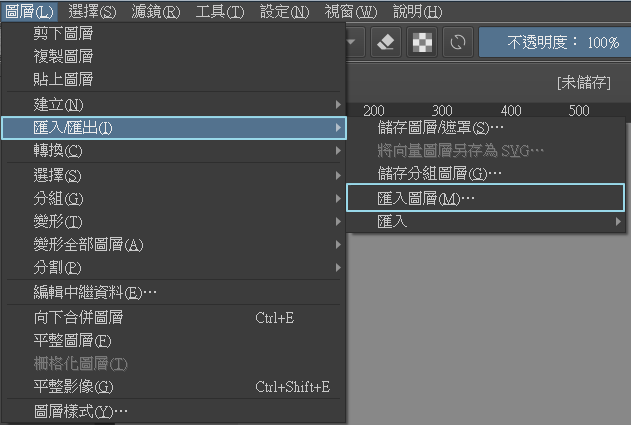
Fig. 51 Import layers in Krita
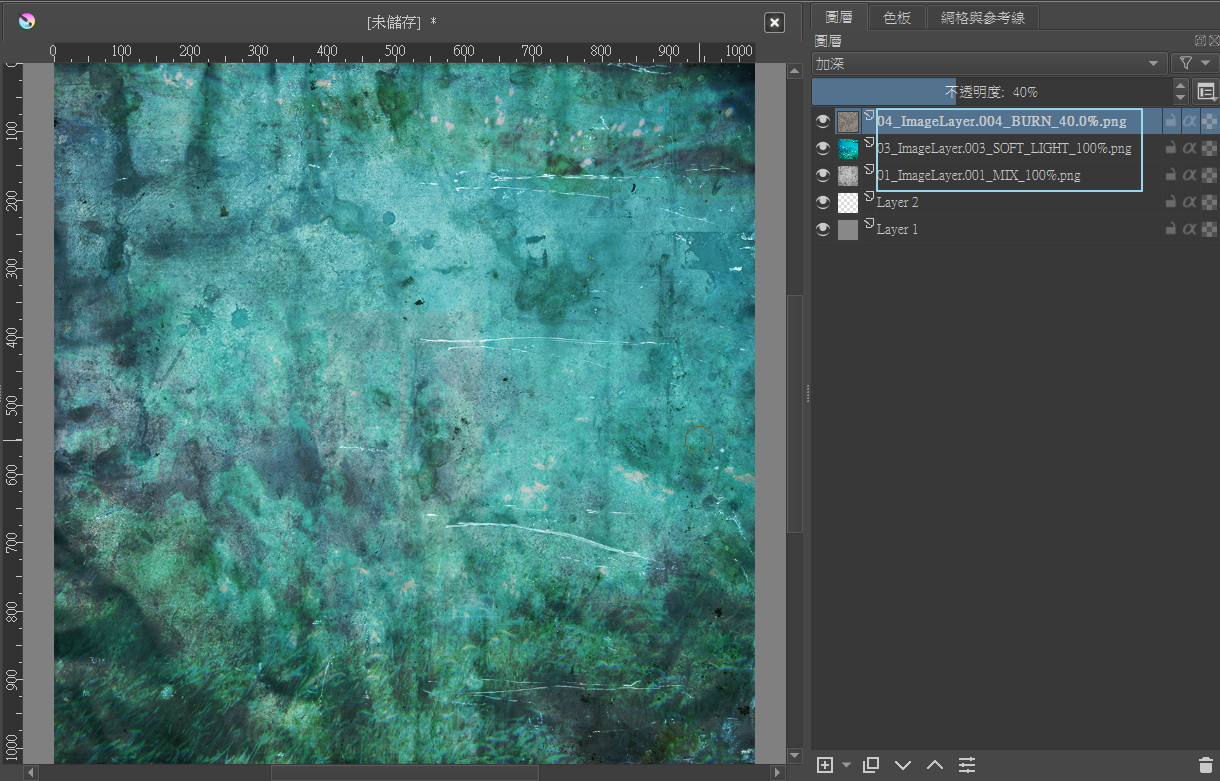
Fig. 52 Complete the merged layers
Compositing PSD Files – Photoshop
Enable layer info, set layers to sort correctly, and output layers.
Open Photoshop, and the file script loads the file into the stack.
Select the output layer images and they will be arranged in order.
According to the imported layer image information, set the layer blending mode and opacity.
Save it as a PSD file, and then import it into ACPainter as a reference layer for easy correction at any time.
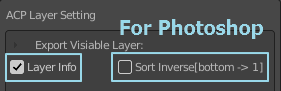
Fig. 53 Settings of export layers to Photoshop
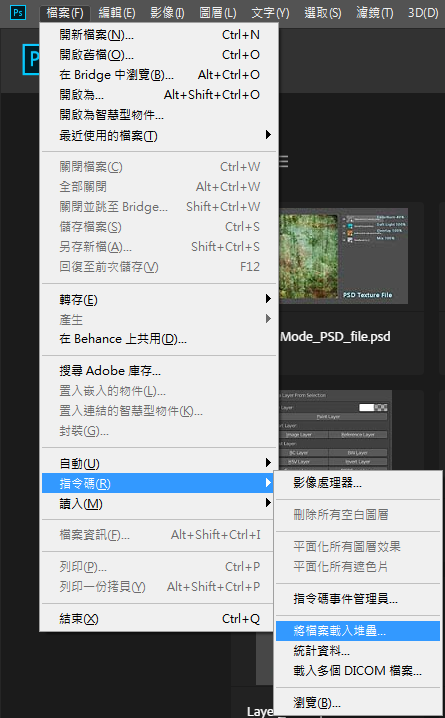
Fig. 54 Import layers in Photoshop
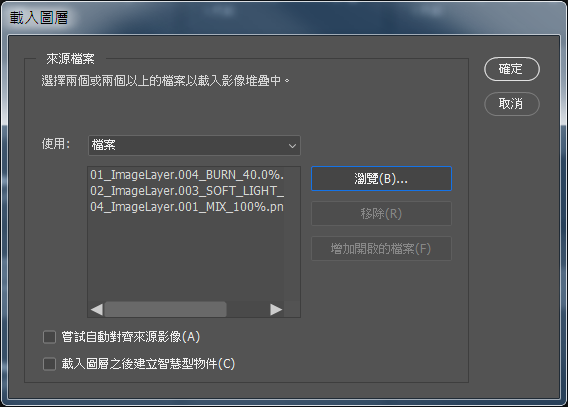
Fig. 55 Import layers in Photoshop
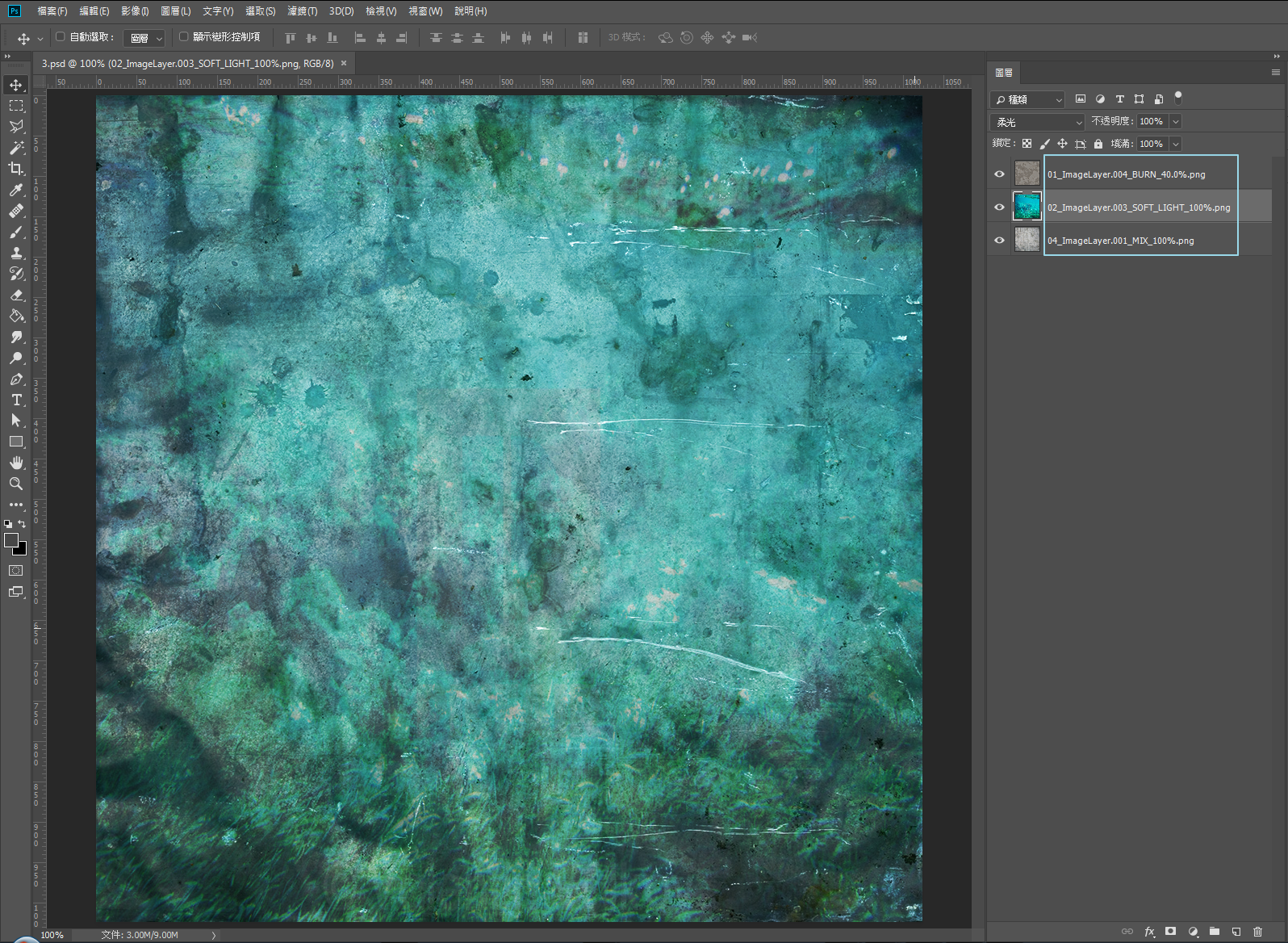
Fig. 56 Complete the merged layers
Merge All Visible Layers
After setting the visible layers to be merged, press the layer merge button.
After a while, the merged image content will be saved to a new drawing layer, named starting with Composite.
The UV space of the selected object determine merge image content.
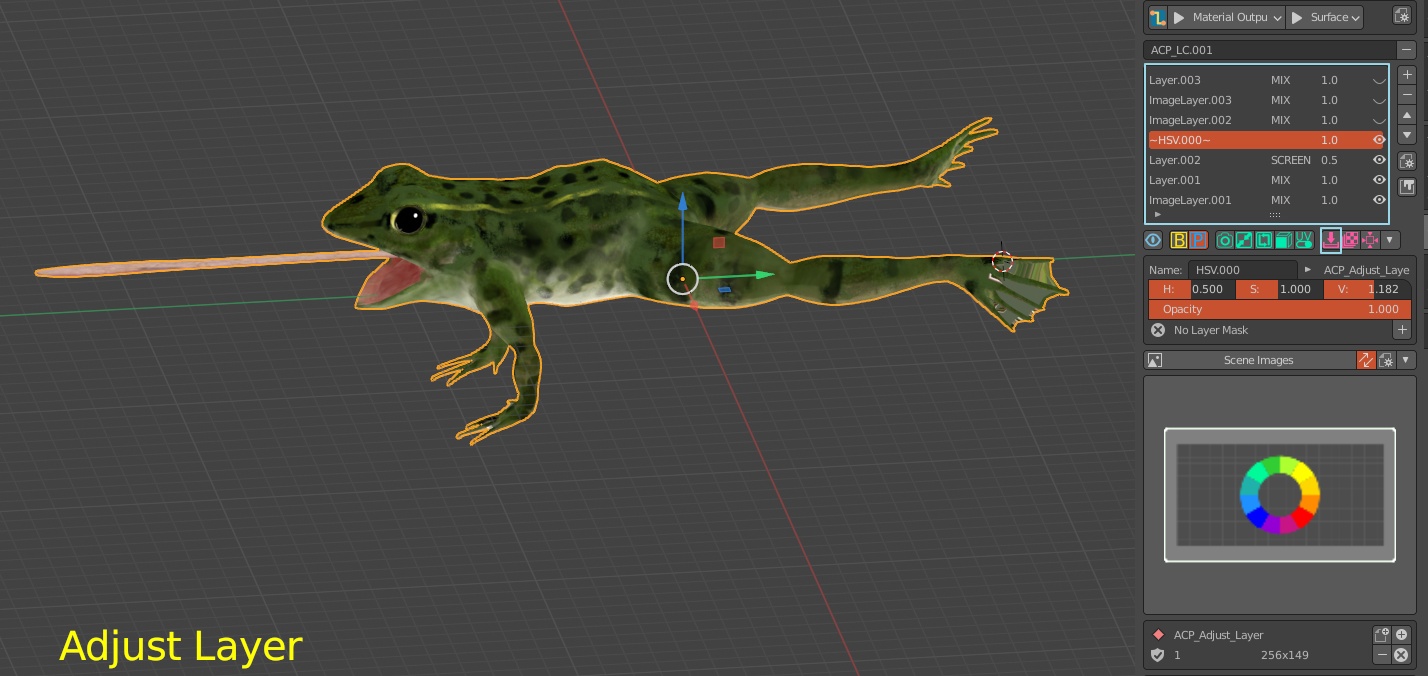
Fig. 57 Turn off the layers that do not need to be synthesized in the layer list
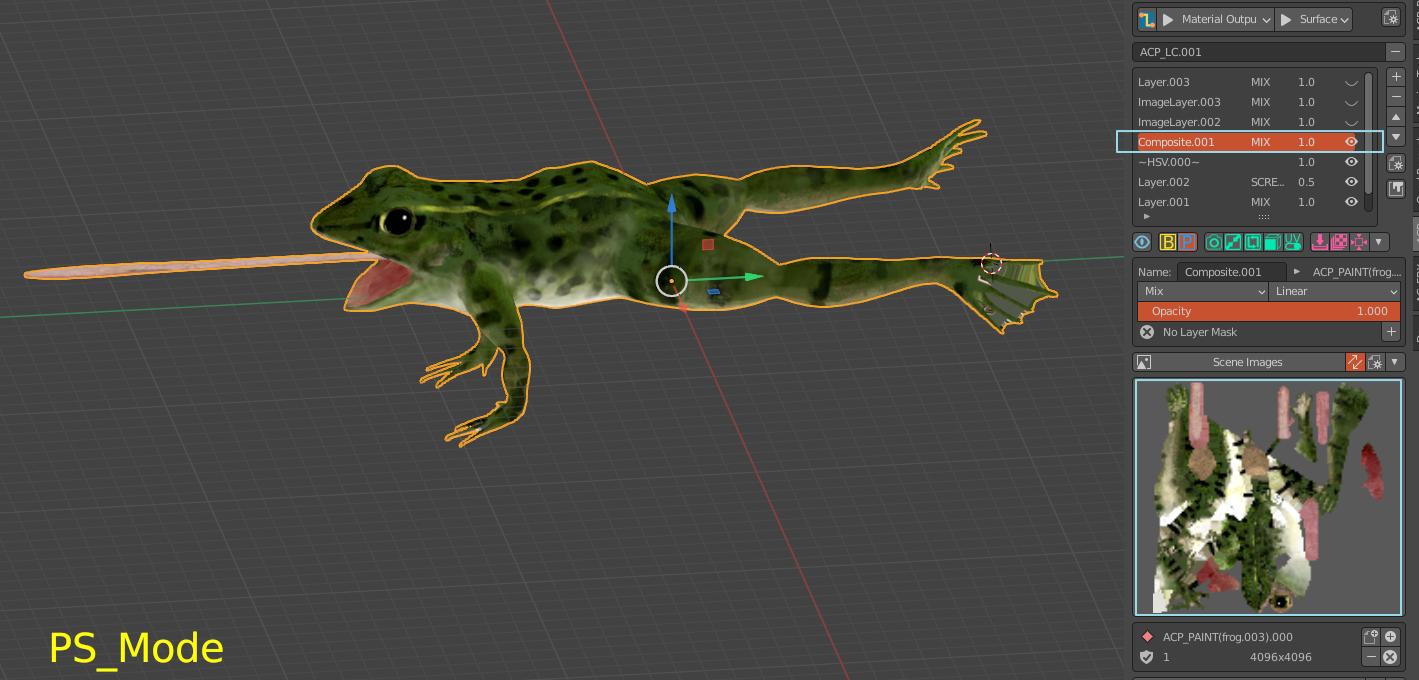
Fig. 58 The visible layers are merged into a new layer